If you’ve ever built a release APK manually, you know the drill. You update the version, run the Gradle command, wait for the build, dig through folders to find the APK, open Firebase, upload it, pick your testers, and finally type out release notes.
Doing this every time you want to share a test build is not just tedious it’s prone to human error.
By automating this process, you can reduce all those steps to a single click. In this guide, we’ll build a complete CI/CD pipeline using GitHub Actions and Firebase App Distribution. By the end, your testers will receive the latest builds automatically, and your sensitive signing keys will remain perfectly secure.

🛠 Prerequisites
Before diving in, make sure you have:
- An Android app that builds successfully on your local machine.
- A Firebase project connected to your app.
- A release keystore (
.jks) used to sign your app. - Admin access to your GitHub repository (to configure Secrets).
Step 1: Set Up Firebase App Distribution
First, we need to prepare Firebase to receive our automated builds.
1. Create a Tester Group
- In the Firebase Console, navigate to Release & Monitor > App Distribution and click Get started.
- Under the Testers & Groups tab, click Add group.
- Name it something like QA Testers.
Pro Tip: Note the group’s alias (e.g.,
qa-testers). GitHub Actions will need this machine-readable ID later.
2. Grab Your Firebase App ID
Go to Project Settings (⚙️) > General > Your Apps. Copy the App ID, which looks like this: 1:1234567890:android:abc123def45.
3. Generate a Service Account
GitHub Actions needs permission to upload files to Firebase.
- Navigate to Project Settings > Service Accounts.
- Click Generate new private key.
- Save the downloaded
.jsonfile securely. Never commit this file to Git.
Step 2: Configure Secure App Signing
We need to configure Gradle to sign your app without hardcoding passwords into your repository.
Create a file named keystore.properties inside your app directory:
Properties
storeFile=release.jks
storePassword=YOUR_KEYSTORE_PASSWORD
keyAlias=YOUR_KEY_ALIAS
keyPassword=YOUR_KEY_PASSWORD
Next, update your app/build.gradle.kts file to read these properties. This logic ensures that if the properties file is missing (like on a contributor's machine), Gradle safely falls back to the debug key:
import java.util.Properties

val keystorePropsFile = file("keystore.properties")
val keystoreProps = Properties().apply {
    if (keystorePropsFile.exists()) {
        keystorePropsFile.inputStream().use { load(it) }
    }
}

android {
    signingConfigs {
        create("release") {
            if (keystorePropsFile.exists()) {
                storeFile = file(keystoreProps.getProperty("storeFile"))
                storePassword = keystoreProps.getProperty("storePassword")
                keyAlias = keystoreProps.getProperty("keyAlias")
                keyPassword = keystoreProps.getProperty("keyPassword")
            }
        }
    }

    buildTypes {
        getByName("release") {
            isMinifyEnabled = true
            signingConfig = if (keystorePropsFile.exists())
                signingConfigs.getByName("release")
            else
                signingConfigs.getByName("debug")
        }
    }
}
Finally, ensure your sensitive files are added to your .gitignore:
google-services.json
keystore.properties
*.jks
*.keystore
Step 3: Configure GitHub Secrets
Because we .gitignored our sensitive files, GitHub Actions won't have access to them. We solve this using GitHub Secrets and Base64 encoding.
Go to your GitHub repository: Settings > Secrets and variables > Actions > New repository secret.
Add the following text-based secrets:
FIREBASE_APP_ID: Your Firebase App ID.FIREBASE_SERVICE_ACCOUNT: The raw JSON contents of your service account file.KEYSTORE_PASSWORD: Your keystore password.KEY_ALIAS: Your key alias.KEY_PASSWORD: Your key password.
For your physical files (google-services.json and your .jks file), you must encode them into Base64 strings first. Run this in your terminal:
Mac:
base64 -i app/google-services.json | pbcopy
base64 -i app/release.jks | pbcopy
Linux:
base64 app/google-services.json | xclip -selection clipboard
base64 app/release.jks | xclip -selection clipboard
Paste the outputs into two new secrets: GOOGLE_SERVICES_JSON and KEYSTORE_BASE64.
Step 4: Create the CI/CD Workflow
Now for the magic. Create a new YAML file at .github/workflows/firebase-release.yml:
name: Firebase Distribution — Release

on:
  workflow_dispatch:
    inputs:
      releaseNotes:
        description: "Release notes shown to testers"
        required: true
        type: string
        default: "Bug fixes and performance improvements"

jobs:
  distribute:
    name: Build & Distribute Release APK
    runs-on: ubuntu-latest
    steps:
      - name: Checkout repository
        uses: actions/checkout@v4

      - name: Set up JDK 17
        uses: actions/setup-java@v4
        with:
          distribution: temurin
          java-version: "17"

      - name: Set up Gradle
        uses: gradle/actions/setup-gradle@v4

      - name: Recreate google-services.json
        env:
          GOOGLE_SERVICES_JSON: ${{ secrets.GOOGLE_SERVICES_JSON }}
        run: echo "$GOOGLE_SERVICES_JSON" | base64 --decode > app/google-services.json

      - name: Recreate release keystore
        env:
          KEYSTORE_BASE64: ${{ secrets.KEYSTORE_BASE64 }}
        run: echo "$KEYSTORE_BASE64" | base64 --decode > app/release.jks

      - name: Create keystore.properties
        env:
          STORE_PASSWORD: ${{ secrets.KEYSTORE_PASSWORD }}
          KEY_ALIAS: ${{ secrets.KEY_ALIAS }}
          KEY_PASSWORD: ${{ secrets.KEY_PASSWORD }}
        run: |
          printf 'storeFile=release.jks\nstorePassword=%s\nkeyAlias=%s\nkeyPassword=%s\n' \
            "$STORE_PASSWORD" "$KEY_ALIAS" "$KEY_PASSWORD" > app/keystore.properties
      - name: Build Release APK
        run: ./gradlew :app:assembleRelease --stacktrace

      - name: Upload to Firebase App Distribution
        uses: wzieba/Firebase-Distribution-Github-Action@v1
        with:
          appId: ${{ secrets.FIREBASE_APP_ID }}
          serviceCredentialsFileContent: ${{ secrets.FIREBASE_SERVICE_ACCOUNT }}
          groups: qa-testers
          file: app/build/outputs/apk/release/app-release.apk
          releaseNotes: ${{ inputs.releaseNotes }}
How this works:
- Environment Setup: It spins up an Ubuntu runner, checks out your code, and sets up Java 17 and Gradle.
- Secret Reconstruction: It decodes your Base64 secrets back into actual files (
google-services.jsonandrelease.jks) and writes yourkeystore.propertieson the fly. - Build & Deploy: It builds the release APK and hands it off to a pre-built Firebase action, which emails your testers.
Step 5: Ship It!
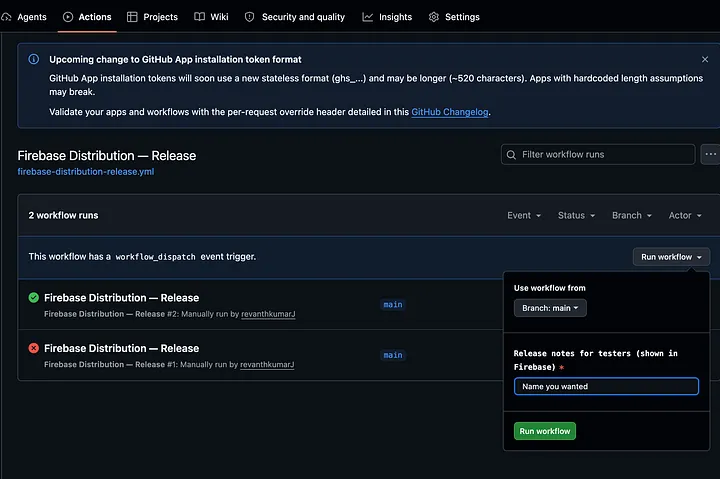
Once this workflow file is merged into your main branch, navigate to the Actions tab in your GitHub repo.
- Select Firebase Distribution — Release on the left.
- Click Run workflow.
- Type in your release notes (e.g., "Added dark mode support").
- Click Run workflow.
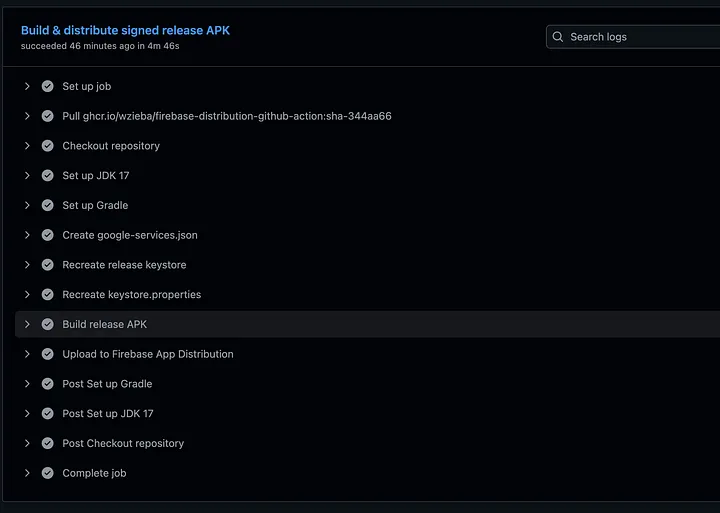
Grab a coffee. In a few minutes, your testers will have an email sitting in their inbox with a download link to your freshly signed app.
Troubleshooting Common Issues
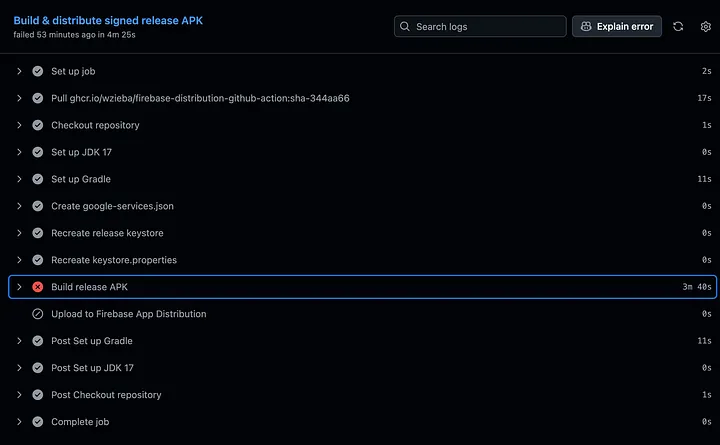
- Permission error on upload: Ensure your Firebase Service Account has the Firebase App Distribution Admin role in Google Cloud IAM.
- APK file not found: If your module is named something other than
app, make sure to update the Gradle command and APK path in the YAML file. - Run workflow button is missing: You can only manually trigger workflows that exist on your repository's default branch.
Wrapping Up
By treating your cloud runner like a fresh machine and securely passing it your credentials via GitHub Secrets, you’ve eliminated one of the most tedious parts of Android development.
From here, you could tweak this workflow to run automatically on every git tag, or even adapt it to build an Android App Bundle (AAB) for Google Play.